How to Merge PDF Files Free Online (Step-by-Step Guide)
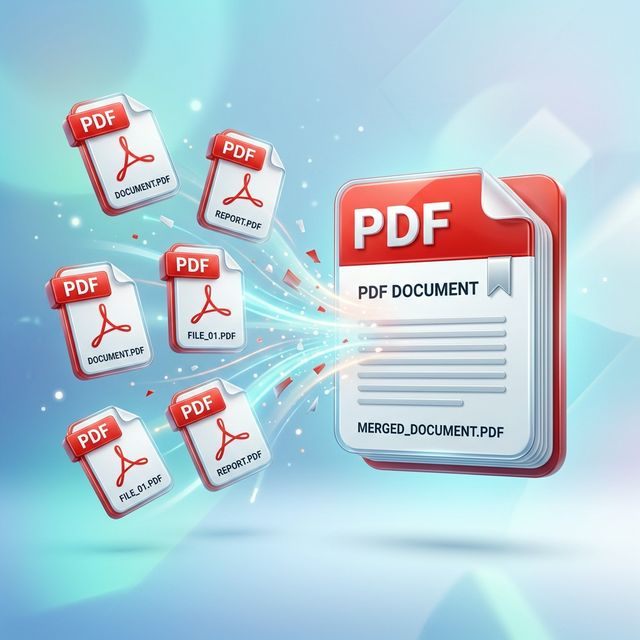
Whether you are putting together a report from multiple team members, organizing your digital receipts for tax season, or compiling a portfolio of your work, knowing how to merge PDF files is an essential digital skill in 2026.
While Adobe Acrobat is the most famous tool for handling PDFs, it requires a paid subscription for premium features like merging. Fortunately, you don't need to pay to combine documents. In this guide, we'll show you exactly how to merge PDFs for free using online tools, as well as built-in methods for Mac and Windows.
Why Merge PDF Files?
Before jumping into the how, here are a few common reasons why combining PDFs is so useful:
Method 1: The Easiest Way — ConverterDev's Merge PDF Tool (Free & Online)
The fastest and most universally accessible way to combine files is using a browser-based tool. It works on Windows, macOS, Linux, iOS, and Android without requiring any software installation. Our tool at ConverterDev is 100% free, fast, and secure.
Step-by-Step Guide:
Step 1. Go to the Merge PDF Tool
Open your web browser and navigate to our free Merge PDF tool.
Step 2. Upload Your Files
Click the "Select PDF files" button or simply drag and drop your PDFs into the upload area. You can select multiple files at once.
Step 3. Reorder if Necessary
Once uploaded, you will see thumbnails or a list of your files. You can drag them around to ensure they are in the correct order before merging. The order you arrange them in will be the order they appear in the final document.
Step 4. Merge and Download
Click the "Merge PDF" button. Within seconds, your files will be combined into a single document, and the download will start automatically.
Privacy Note: Files processed through our tool are deleted from our servers shortly after processing, ensuring your data remains private.
Method 2: How to Merge PDFs on Mac (Using Preview)
If you are an Apple user, you already have a built-in tool that can handle PDF merging: Preview.
Method 3: How to Merge PDFs on Windows
Unlike macOS, Windows does not have a native, pre-installed tool specifically designed for easily dragging and dropping PDF pages together. However, you still have options.
Option A: Use Microsoft Edge (or Word)
While you can view PDFs in Edge, you cannot merge them directly. However, if you have Microsoft Word:Option B: Third-Party Free Software (e.g., PDF24 or PDFsam)
If you need to merge files frequently offline, downloading a free, open-source tool like PDFsam Basic (PDF Split and Merge) is a great choice. It allows you to add files, arrange them, and combine them securely on your local hard drive.Comparison Table: Which Method is Best for You?
| Feature | ConverterDev (Online) | Mac Preview | Windows (Word) | Dedicated Software |
|---|---|---|---|---|
| Cost | 100% Free | Free (Built-in) | Paid (Requires Office) | Free/Freemium |
| Setup Required | None (Browser) | None | None | Installation |
| OS Compatibility | Web, Win, Mac, Mobile | Mac OS only | Windows/Mac | Windows/Mac/Linux |
| Best For | Fast, occasional merging | Mac users | simple text docs | Frequent offline merging |
People Also Ask
Is it safe to merge PDFs online?
Yes, reputable online tools like ConverterDev use secure connections (HTTPS) and automatically delete your files from their servers shortly after processing. However, for extremely sensitive documents (like legal contracts with SSNs), using an offline desktop tool is always the safest bet.Does merging PDFs reduce file size?
Not necessarily. In most cases, the resulting merged PDF will be roughly the combined size of the individual files. If your new file is too large to email, you can easily compress it using our Compress PDF tool.Can I merge images and PDFs together?
Yes! Many online tools allow you to convert images (JPG, PNG) into PDF format first, and then merge them together. You can convert your images using our Image to PDF converter, and then combine the resulting documents.Ready to Merge Your Files?
Combining your documents doesn't have to be a headache or cost you a subscription fee.
Merge your PDFs for free right now →
Related Articles: